

How to create and submit a sitemap in WordPress for Google?
If you’re looking to improve the SEO of your WordPress site, creating and submitting a sitemap to Google is a crucial task.
A sitemap helps search engines like Google understand the structure of your site and index all your pages.
In this article, I will explain step-by-step how to create a WordPress sitemap and submit it to Google Search Console.
Let’s get started!
- What is a sitemap?
- Why do you need an XML sitemap in WordPress?
- How to create a sitemap in WordPress?
- How to submit the WordPress sitemap to Google Search Console
- Where to view the sitemap in WordPress
- Alternative plugins to create sitemaps in WordPress
- Best practices for managing a WordPress sitemap
- How to verify your WordPress sitemap
- Conclusion
What is a Sitemap?
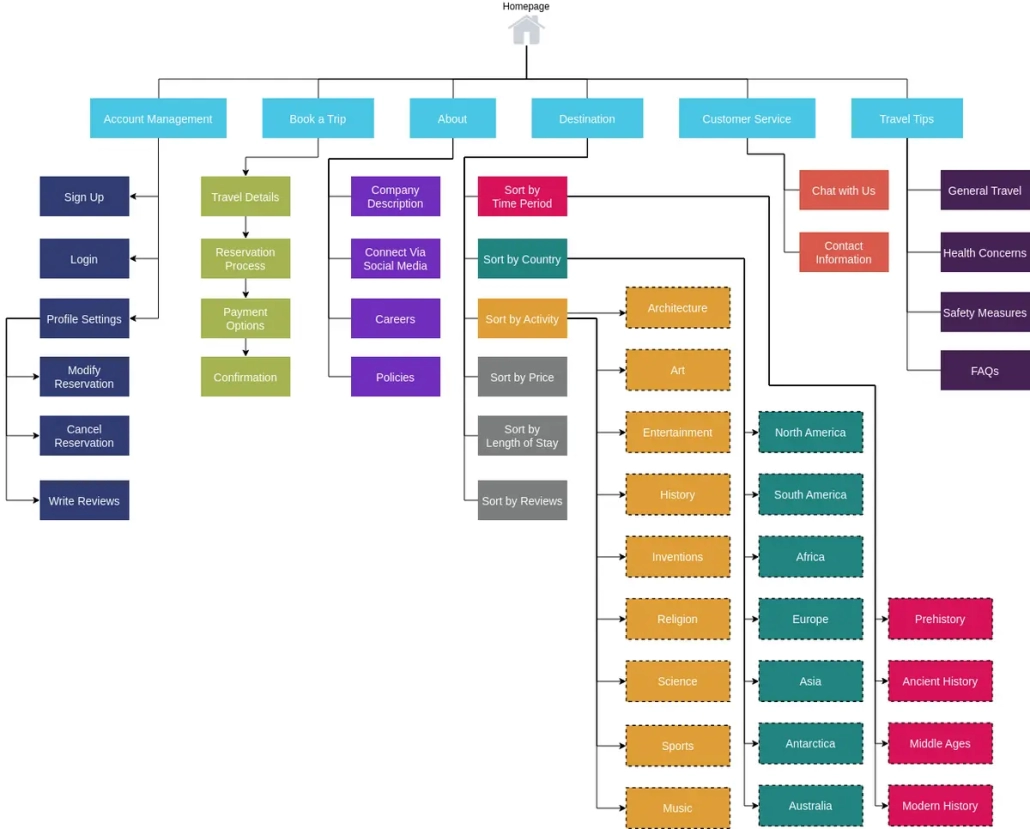
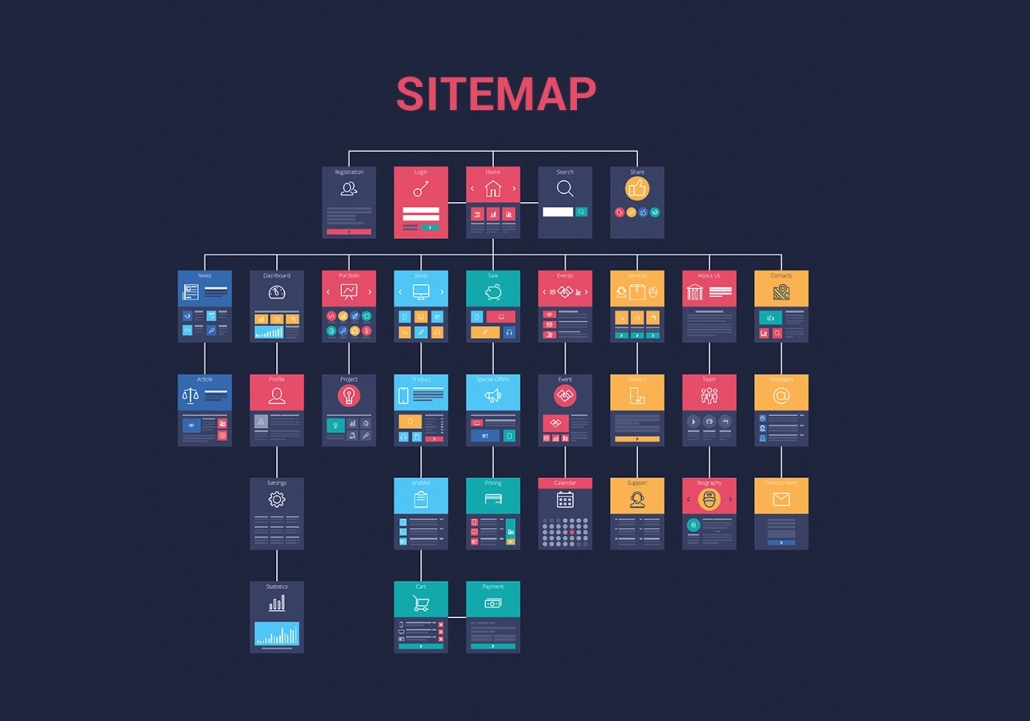
A sitemap is an XML file that contains a list of all the URLs on your website.
This file helps search engines crawl and index your site more efficiently.
There are different types of sitemaps, but the most common and effective for SEO is the XML sitemap.
Additionally, using a WordPress sitemap allows you to have more precise control over which pages are crawled by Google.
Subscribe to OnlyNiches.NET from just €30/month and start scaling your website today.
Why Do You Need an XML Sitemap in WordPress?
A sitemap is essential for improving your website’s ranking.
By providing Google and other search engines with a clear roadmap of all your pages, you ensure that all your content is crawled and indexed.
This is especially important for large or complex sites, as well as for new sites that have not yet been fully crawled.
Having a WordPress sitemap helps ensure that all your web pages, including blogs and online stores, are visible in search engines.
How to Create a Sitemap in WordPress?
There are several methods to create a sitemap for WordPress, but the easiest and most effective is by using WordPress plugins.
Here’s how to do it with two of the most popular plugins: Yoast SEO and Google XML Sitemaps.
Creating an XML Sitemap for WordPress with Yoast SEO
Yoast is one of the most popular SEO plugins for WordPress and offers an easy way to generate an XML sitemap.
- Install and activate the Yoast plugin from the WordPress admin panel.
- Go to SEO > General and select the Features tab.
- Enable the XML Sitemaps option.
- Click on the “See the XML Sitemap” link to verify that your sitemap has been correctly generated.
The URL for the Yoast sitemap is usually yoursite.com/sitemap_index.xml.
This XML sitemap is crucial for search engines to effectively crawl your content.
Creating an XML Sitemap for WordPress with Google XML Sitemaps
Google XML is another very popular plugin for generating sitemaps in WordPress.
- Install and activate the Google XML Sitemaps plugin from the WordPress admin panel.
- Go to Settings > XML-Sitemap.
- The plugin will automatically generate an XML sitemap, and you can view the sitemap URL.
The URL for the sitemap generated by Google XML Sitemaps is typically yoursite.com/sitemap.xml.
Make sure this XML file is correctly configured so that search engines like Google and Bing can find all your pages.
How to Submit the WordPress Sitemap to Google Search Console
Once you have created your sitemap, the next step is to submit it to Google Search Console so that Google can correctly crawl and index your site.
Subscribe to OnlyNiches.NET from just €30/month and start scaling your website today.
Where to View the Sitemap in WordPress
In WordPress, to view your website’s sitemap, you can use an SEO plugin like Yoast SEO or Rank Math, which automatically generate an XML sitemap.
Once the plugin is installed, you can access the sitemap by navigating to `/sitemap.xml` in your browser.
You can also verify the sitemap in the Google Search Console search tool.
Alternative Plugins to Create Sitemaps in WordPress
In addition to Yoast SEO and Google XML Sitemaps, there are other plugins that can also help you generate a sitemap for your WordPress site:
- All in One SEO: Another popular plugin that includes XML sitemap generation functionality. This plugin is an excellent choice for those looking for an all-in-one SEO solution.
- Rank Math: This SEO plugin also allows you to create XML sitemaps and offers many additional features to improve your SEO. It is known for its user-friendly interface and advanced options.
- SEOPress: A lesser-known but very effective plugin for creating sitemaps and managing your website’s SEO. SEOPress is ideal for those looking for a lightweight yet powerful alternative to the more popular plugins
Best Practices for Managing a WordPress Sitemap
To ensure your sitemap is effective and always up-to-date, follow these best practices:
- Keep Your Sitemap Updated: Whenever you add, delete, or modify content on your site, ensure that your sitemap updates automatically. Most SEO plugins handle this for you.
- Submit Your Sitemap to Google Regularly: Although Google automatically checks submitted sitemaps, it’s a good practice to resubmit your sitemap whenever you make significant changes to your site.
- Include Only Relevant Pages: Make sure your sitemap only includes relevant and high-quality pages. Avoid including low-quality or duplicate pages.
How to Verify Your WordPress Sitemap
After creating and submitting your sitemap, it’s important to verify that it is functioning correctly. Here’s how to do it:
- Access Google Search Console: Log in and select your property.
- Go to the Sitemaps Section: Check that your sitemap has been processed correctly. You should see the status of your sitemap and the number of indexed URLs.
- Address Any Issues: If there are any problems, review the XML file of your sitemap and ensure that all URLs are accessible and in the correct format.
Conclusion
Creating and submitting a sitemap for your WordPress site to Google is a crucial task for improving your website’s SEO. With the right steps and tools, you can ensure that your site is properly crawled and indexed by search engines.
Whether you use Yoast SEO, Google XML Sitemaps, or another plugin, keeping your sitemap updated and submitting it to Google Search Console will help improve your site’s visibility in search results.
Don’t wait any longer! Set up your sitemap today and take a step forward in your SEO strategy.

Eduardo Medina
Eduardo Medina es programador y SEO, con más de 20 años de experiencia en ambos campos. Desde 2024 escribe post para OnlyNiches.NET en el que enseña a los usuarios a posicionar su web y su marca en los motores de búsqueda y redes sociales. En un mundo tan cambiante, hay que estar siempre aprendiendo y reinventándose.


Leave a Reply
Want to join the discussion?Feel free to contribute!